Bandicam
Screen and game recorder for Windows — free trial, official download

About Bandicam
Bandicam is a screen and game recorder for Windows that captures your desktop, gameplay, and external video devices in high quality. It offers three recording modes: Screen Recorder (full screen, window, or custom area), Game Recorder (DirectX, OpenGL, and Vulkan games—up to 480 FPS and 4K UHD with minimal performance impact), and Webcam Recorder (webcam, HDMI capture, IPTV, consoles). Output is saved as MP4 or AVI; you can start and stop recording with the default hotkey F12.
The software compresses video while recording, so file sizes are typically 20–95% smaller than with many other screen capture tools at similar quality. That saves disk space and speeds up uploads to YouTube, Google Drive, or Vimeo. Bandicam is used by over 10 million users for gameplay recording, tutorials, online lectures, and software demos. Download the free version from the Download page to try all modes (10-minute limit per video in the unregistered version).
Main features
Three recording modes plus tools to improve quality and workflow.
Game recording
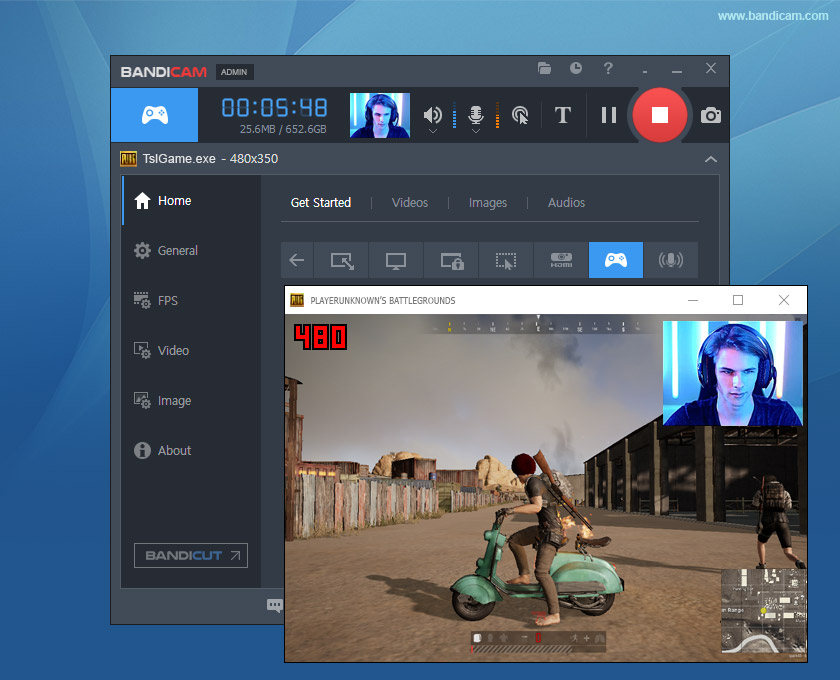
Hooks into DirectX, OpenGL, and Vulkan so you can record 2D/3D games with minimal FPS loss. Supports up to 480 FPS and 4K UHD. Use this mode for any fullscreen or windowed game.
Record gameplay
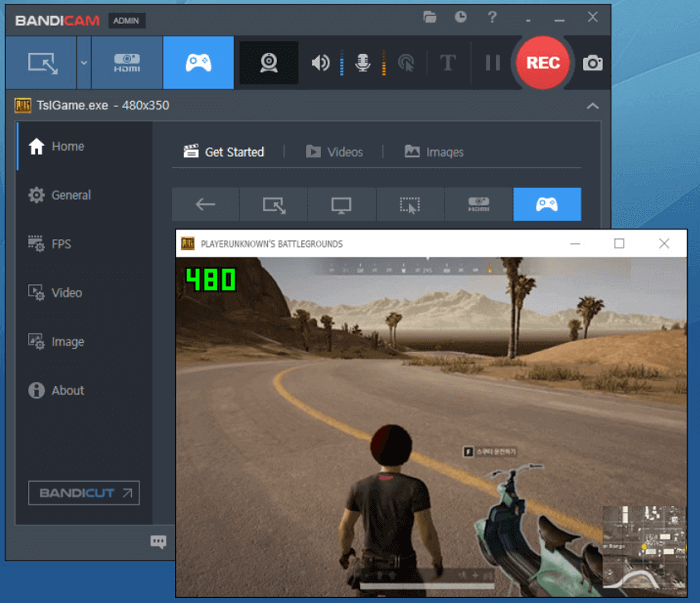
Start your game, press F12 to begin recording, and F12 again to stop. Output is ready to upload to YouTube, Google Drive, or Vimeo without conversion. The on-screen FPS counter shows when recording is active.
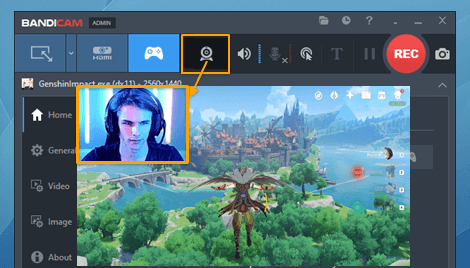
Facecam overlay
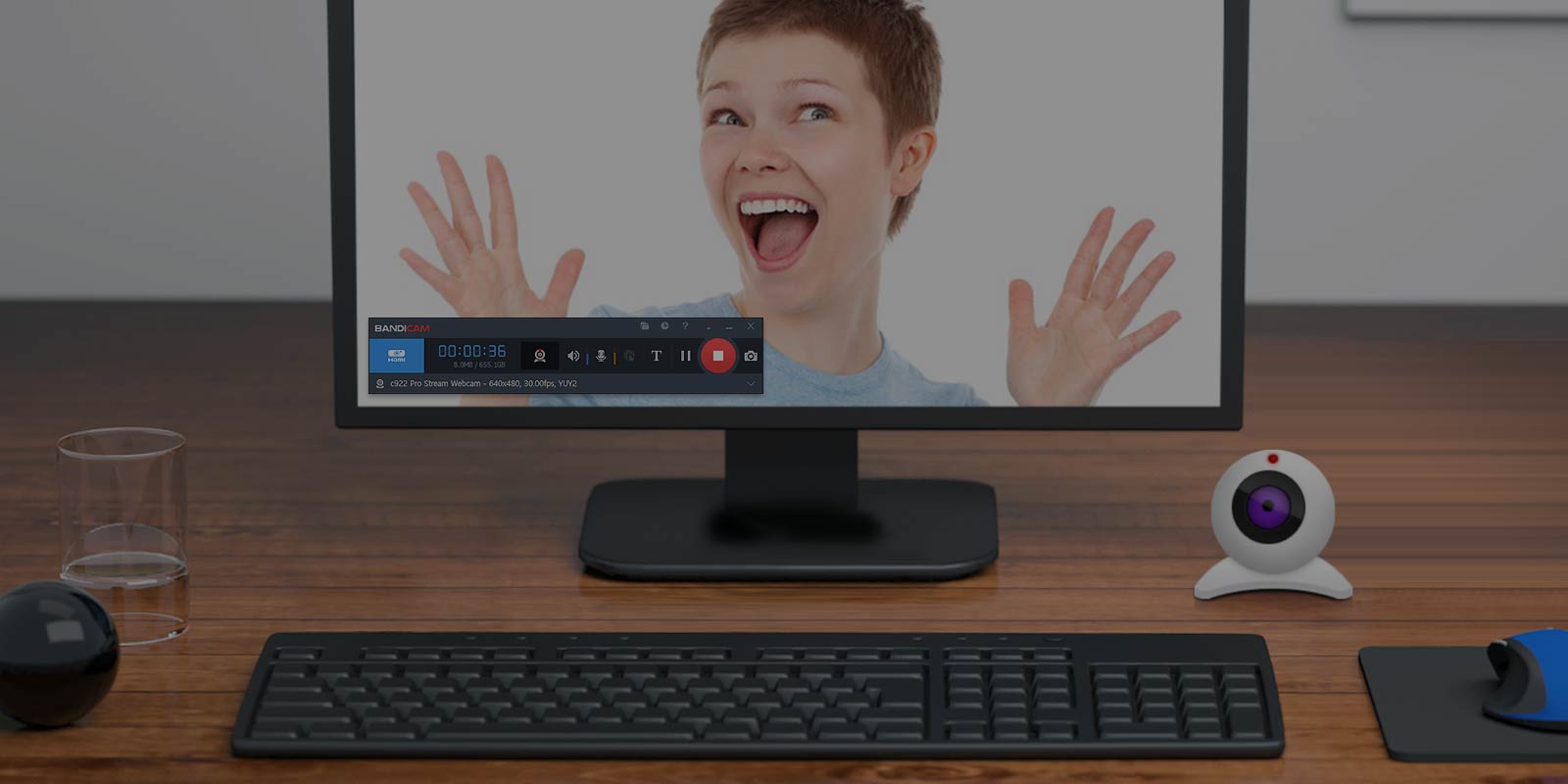
Add a picture-in-picture webcam or facecam on your recording. Choose from rectangle, rounded, or chroma key styles. Useful for streams, tutorials, and reaction videos.
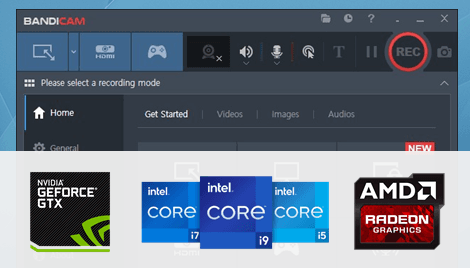
Hardware acceleration
Encode with NVIDIA NVENC, Intel Quick Sync, or AMD VCE/VCN (H.264 and HEVC). Reduces CPU load and often produces smaller files at the same quality. Enable it in Bandicam’s video settings.
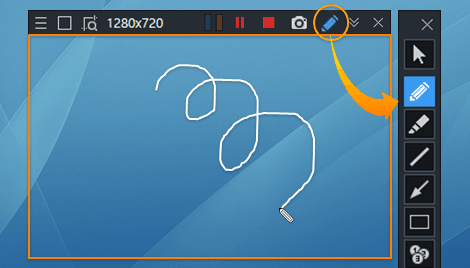
Real-time drawing
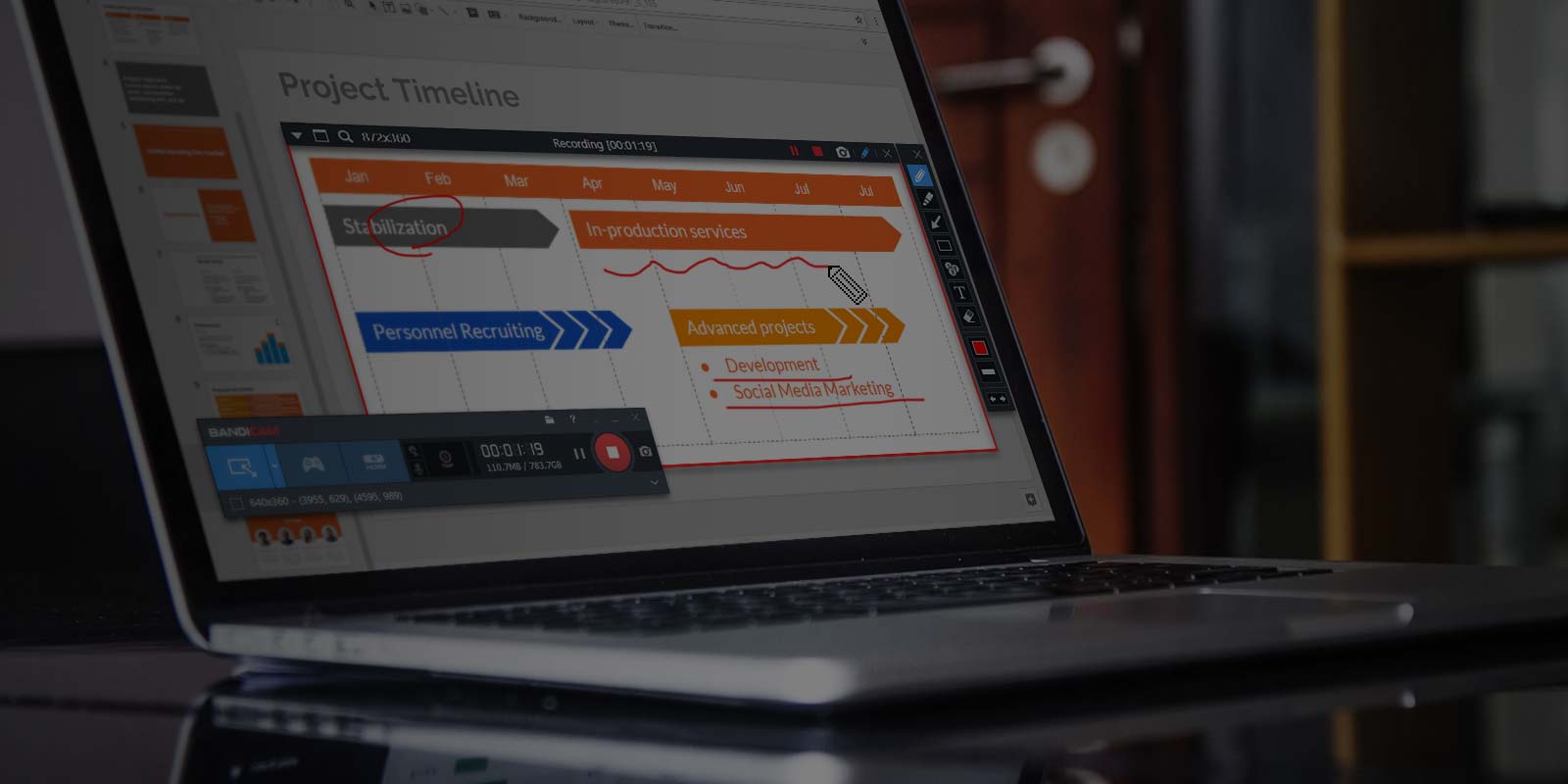
Draw, highlight, or annotate on the video or screenshot while recording. No need to edit afterward. Ideal for tutorials, presentations, and support videos.
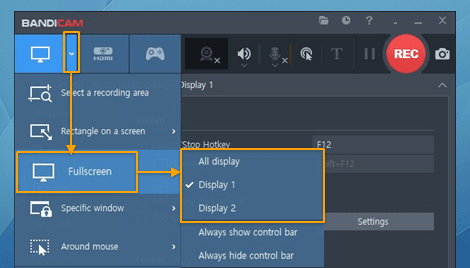
Multiple screens
Record full screen, a single window, or a custom rectangle. On multi-monitor setups, choose which display or area to capture. Bandicam can auto-detect video regions (e.g. YouTube player) for cleaner captures.
What you can record
Use Bandicam to capture games, applications, streaming video, and external devices.
Games
Any 2D/3D game using DirectX, OpenGL, or Vulkan (e.g. Minecraft, Roblox, PUBG, League of Legends, Skyrim, World of Warcraft, Overwatch, GTA). Also supports Windows Store (UWP) apps and BlueStacks.
Streaming and video
Capture streaming sites (YouTube, BBC, CNN), video calls (Zoom, Microsoft Teams), and players (Windows Media Player, VLC). Use Screen Recording mode and select the window or region.
Desktop and applications
Record the full desktop, a single app (PowerPoint, Excel, browser, Messenger), or a custom rectangle. Useful for software demos and tutorials.
Webcam and capture devices
Webcam, HDMI capture cards, IPTV, smartphone feed, PlayStation, or Xbox. Use Device Recording mode; output is MP4 or AVI.
Audio only
Record system audio and microphone together, or record audio only as MP3 or WAV without capturing the screen. Handy for podcasts or saving voiceovers.
Long and scheduled recordings
Record continuously for 24+ hours. With the full version, use scheduled recording to start at a set time on a daily or weekly schedule.
Bandicam vs typical recorders
Bandicam stands out for efficiency and compatibility with smaller files and less CPU load.
Smaller file size
High compression while recording; often 20–95% smaller than many other screen recorders at similar quality.
Hardware encoding
NVENC, Quick Sync, AMD VCE reduce CPU load and improve quality.
No conversion for YouTube
Record in MP4 (H.264) and upload directly to YouTube, Vimeo, or Google Drive.
Light on resources
Lower CPU and RAM use so games and apps run smoothly while recording.
Why choose Bandicam?
Built for reliability and efficiency: smaller files, faster uploads, and low CPU load so you can record and use other apps at the same time.
Hardware acceleration
NVIDIA NVENC, Intel Quick Sync, or AMD VCE/VCN for H.264 and HEVC. Reduces CPU use and often improves quality and file size.
No re-encoding
Record in MP4 (H.264) and upload directly to YouTube, Vimeo, or Google Drive without converting.
Low resource use
Light on CPU and RAM compared to many screen recorders, so recording has less impact on games and applications.
Trusted and safe
No adware or spyware. Download from the Download page.
System requirements
Bandicam runs on Windows 7/8/10/11 (64-bit). Mac version available on the Mac App Store.
| Component | Minimum | Recommended |
|---|---|---|
| OS | Windows 11, 10, 8, 7 (64-bit) | Windows 11, 10, 8, 7 (64-bit) |
| CPU | Intel Pentium 4 1.3 GHz or AMD Athlon XP 1500+ | Dual-core (e.g. Intel Pentium D, AMD Athlon 64 X2) |
| RAM | 512 MB or more | 1 GB or more |
| HDD | 1 GB or more | 10 GB or more |
| Display | 800×600, 16-bit color | 1024×768, 16-bit color |
Using Mac? Download Bandicam for macOS from the Mac App Store. Linux is not supported.
What users say
Based on reviews from Software Advice, FinancesOnline, and Trustpilot.
"Clean interface and great quality. I use it for game clips and it just works."
"Reliable for tutorials. File sizes are small compared to other recorders I tried."
"Smooth on my older PC. Upload to YouTube without converting is a plus."
"Simple and consistent. I’ve been using it for years for software demos."
Who uses Bandicam?
Bandicam is used across many workflows where reliable screen or game recording matters.
- Gamers and streamers: Record gameplay for YouTube or Twitch. Works with popular titles (Minecraft, Roblox, League of Legends, PUBG, GTA, and others) via Game Recording mode with minimal FPS impact.
- Educators and trainers: Create video tutorials, online lectures, and how-to guides. Screen Recording mode plus real-time drawing and webcam overlay support clear, professional lessons.
- Content creators: Capture software demos, streaming video, or browser content. Small file sizes and direct upload (no conversion) speed up publishing.
- Professionals: Record Zoom, Microsoft Teams, or other video calls and meetings. Webcam Recorder and Screen Recorder cover both camera and screen capture needs.
Quick troubleshooting
Quick fixes for the most common issues. For detailed steps, see our guides and troubleshooting.
Lag or low FPS when recording
Enable hardware acceleration (NVENC, Quick Sync, or AMD VCE) in video settings. If lag continues, lower recording resolution or FPS, or run the game in windowed mode. Resetting Bandicam to defaults can also help.
Bandicam won’t start or crashes
Download the latest version and run safe mode (bdcam_safemode). Update or reinstall your graphics drivers. Add Bandicam to your antivirus exclusion list, and close other screen-capture or overlay software to test.
Black screen or no video
Switch to the H.264 (CPU) codec in Bandicam settings. If you used Game Recording, try Screen Recording and select the game window. Ensure your GPU drivers are up to date.
No sound or microphone
In Bandicam, enable “Record sound” and choose the correct primary (speakers) and secondary (microphone) devices. Check that the devices are not muted or disabled in Windows Sound settings.
Full guides & troubleshooting →
Tips for best recording quality
- Enable hardware acceleration (NVIDIA NVENC, Intel Quick Sync, or AMD VCE) in Bandicam’s video settings for lower CPU use and often better quality.
- Use MP4 with H.264 for best compatibility with YouTube and most players.
- For games, use Game Recording mode so Bandicam can hook the graphics API and reduce lag.
- If you see lag or stutter, lower recording resolution or FPS, or switch to windowed/borderless game mode.
- For long recordings, ensure enough free disk space and use scheduled recording (full version) if you need automatic start times.
For detailed steps, see our guides.
Guides and support
Use these resources to set up Bandicam, fix common issues, and learn recording workflows.
FAQ
Safety, codecs, system requirements, license transfer, and where to download. Quick answers to the most common questions.
Guides & Troubleshooting
Step-by-step how-to and fixes for lag, crashes, black screen, no sound, and codec errors. Based on official Bandicam support.
Trust & Security
Legal and ethical use, transparency, and safety. bandicam.cc is an independent site; download and purchase at bandicam.com.

Download Bandicam
Get the free version (10 min per recording) or the full version with unlimited recording and no watermark. Download and purchase only from the official site.
bandicam.cc is an independent information site. Download and purchase at bandicam.com.