Bandicam Features

A complete breakdown of Bandicam’s recording modes and tools. For step-by-step how-to and troubleshooting, see Guides & Troubleshooting.

Game recording

Bandicam’s Game Recording mode hooks into DirectX, OpenGL, and Vulkan so you can record 2D and 3D games with minimal FPS loss. Supports up to 480 FPS and 4K UHD (3840×2160). Use the default hotkey F12 to start and stop recording; a green FPS counter shows when the game is detected, and it turns red while recording.
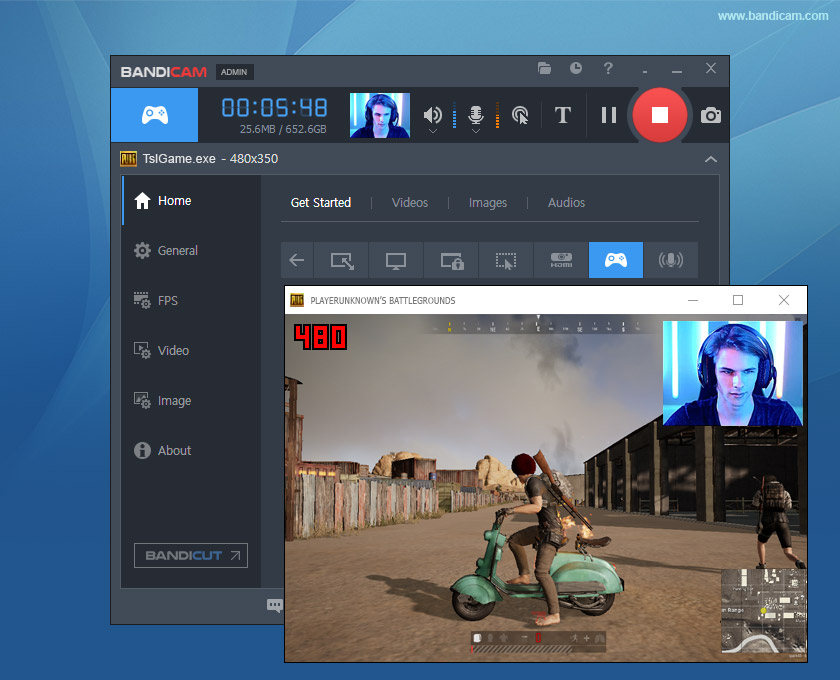
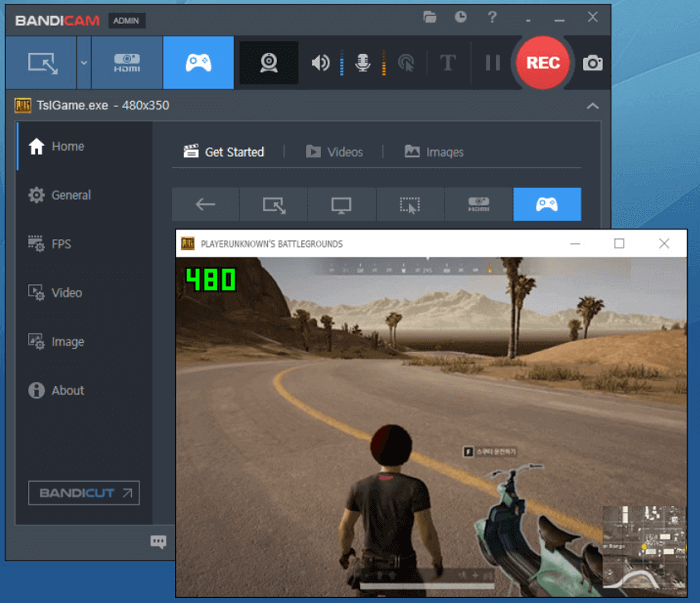
Bandicam game recording mode Record gameplay and upload to YouTube

Works with fullscreen and windowed games. Output is ready to upload to YouTube, Google Drive, or Vimeo without conversion. For best quality and less lag, enable hardware acceleration in Bandicam settings.
Screen recording

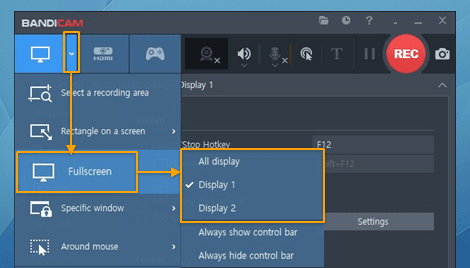
Record your full screen, a specific window, or a custom rectangle. On multi-monitor setups, choose which display or area to capture. Bandicam can auto-detect video areas (e.g. the YouTube player or a browser window) for cleaner captures without extra cropping.

Record multiple screens or regions

Ideal for tutorials, presentations, streaming sites, and software demos. See how to record your screen in our guides.

Webcam / Facecam overlay

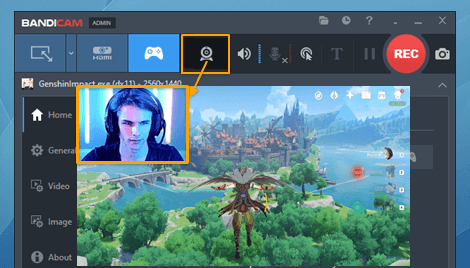
Add a picture-in-picture (PiP) webcam or facecam on your recording. Choose overlay position (e.g. corner), size, and style: rectangle, rounded, or chroma key for green-screen style. Useful for streams, tutorials, and reaction videos.

Webcam and facecam overlay

Enable the webcam overlay in Bandicam settings for the recording mode you use (game or screen). See how to use webcam overlay in our guides.

Hardware acceleration

Encode with NVIDIA NVENC, Intel Quick Sync Video, or AMD VCE/VCN for H.264 and HEVC (H.265). Hardware encoding reduces CPU load and often produces smaller files at the same quality. Enable it in Bandicam’s video settings; if you see lag or black screen, try the H.264 (CPU) codec or update your GPU drivers.

Hardware acceleration NVIDIA Intel AMD

For NVENC requirements and codec details, see FAQ. If recording is laggy, see lag and FPS fixes in our guides.

Real-time drawing

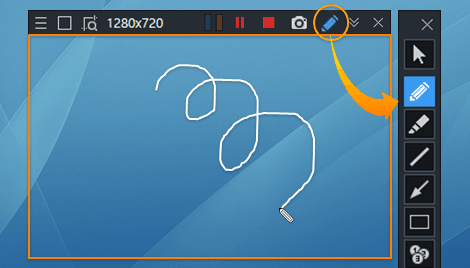
Draw, highlight, or annotate on the video or screenshot while recording. No need to edit afterward. Ideal for tutorials, presentations, and support videos. Use the drawing tools in Bandicam during screen or game recording to add arrows, text, or freehand marks in real time.

Real-time drawing on screen

Other features

  • Scheduled recording — Start recording at a set time on a daily or weekly schedule (full version only).
  • Mouse effects — Highlight cursor and clicks for clearer tutorials.
  • Audio-only recording — Record system audio and microphone as MP3 or WAV without capturing the screen.
  • Upload to YouTube, Vimeo, Google Drive — Direct upload from Bandicam without converting the file.
  • Screenshots — Capture as BMP, PNG, or JPG.
  • BandiFix — Repair corrupted recordings if recording was interrupted (e.g. crash or power loss).

For how-to steps, see Guides & Troubleshooting. Download Bandicam from the Download page.

← Back to home · Download · Guides